"Full stream package" means something different on every listing. One includes alerts and transitions, the next is a logo and three screens. This page lists every piece a complete package can hold, where viewers see it, and whether it can move, so you can compare offers like for like. Platform facts are from Twitch's and OBS's own pages, checked on 21 October 2026.
The quick list
| Piece | Where viewers see it | Moves? |
|---|---|---|
| Logo and small mark | Profile picture, screens, everywhere | Static on the profile |
| Logo intro and logo loop | Start of stream and videos; a loop in a corner of the stream | Animated |
| Starting soon, BRB and ending screens | On stream, between segments | Usually animated |
| Webcam frame | On stream, around your camera | Static or animated |
| Alerts | On stream, for follows, subs, raids, tips | Animated |
| Alert sounds | With every alert | Custom or from a sound library |
| Stinger transition | On stream, between scenes | Animated |
| Custom overlays: giveaway, lower thirds | On stream, for one moment or segment | Animated |
| Panels | Your channel page, under the player | Static |
| Profile banner | Top of your channel page | Static |
| Offline screen | The player while you're offline | Static on Twitch |
| Emotes and sub badges | Chat | Static or animated, often sold separately |
The identity everything else comes from
- The logo. The full version goes on banners and screens.
- A small mark. Your profile picture shows at about 30 px in the Twitch sidebar, so a wordmark rarely survives. A good package includes a mark-only version (an initial, a mascot head, a symbol) for small places.
- Colours and type. Two or three colours and one font, used on every other piece. This is what makes a package look like one channel instead of a set of downloads.
- A logo intro and a logo loop. The same animation in two cuts. The intro plays once, at the start of a stream or a video. The loop is a short seamless version you can leave running in a corner of the stream, so the mark is always on screen without taking space from the game.
On stream
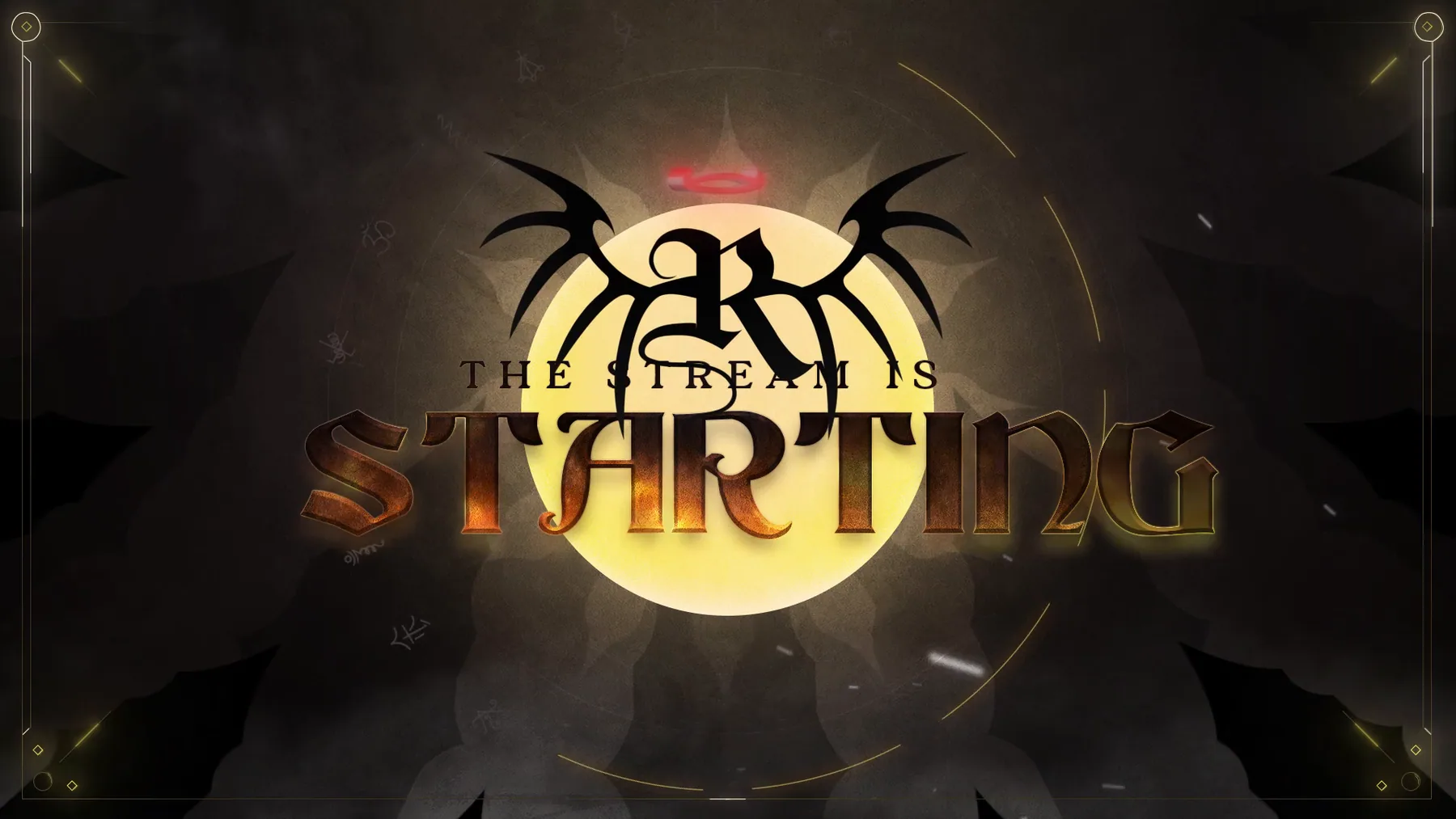
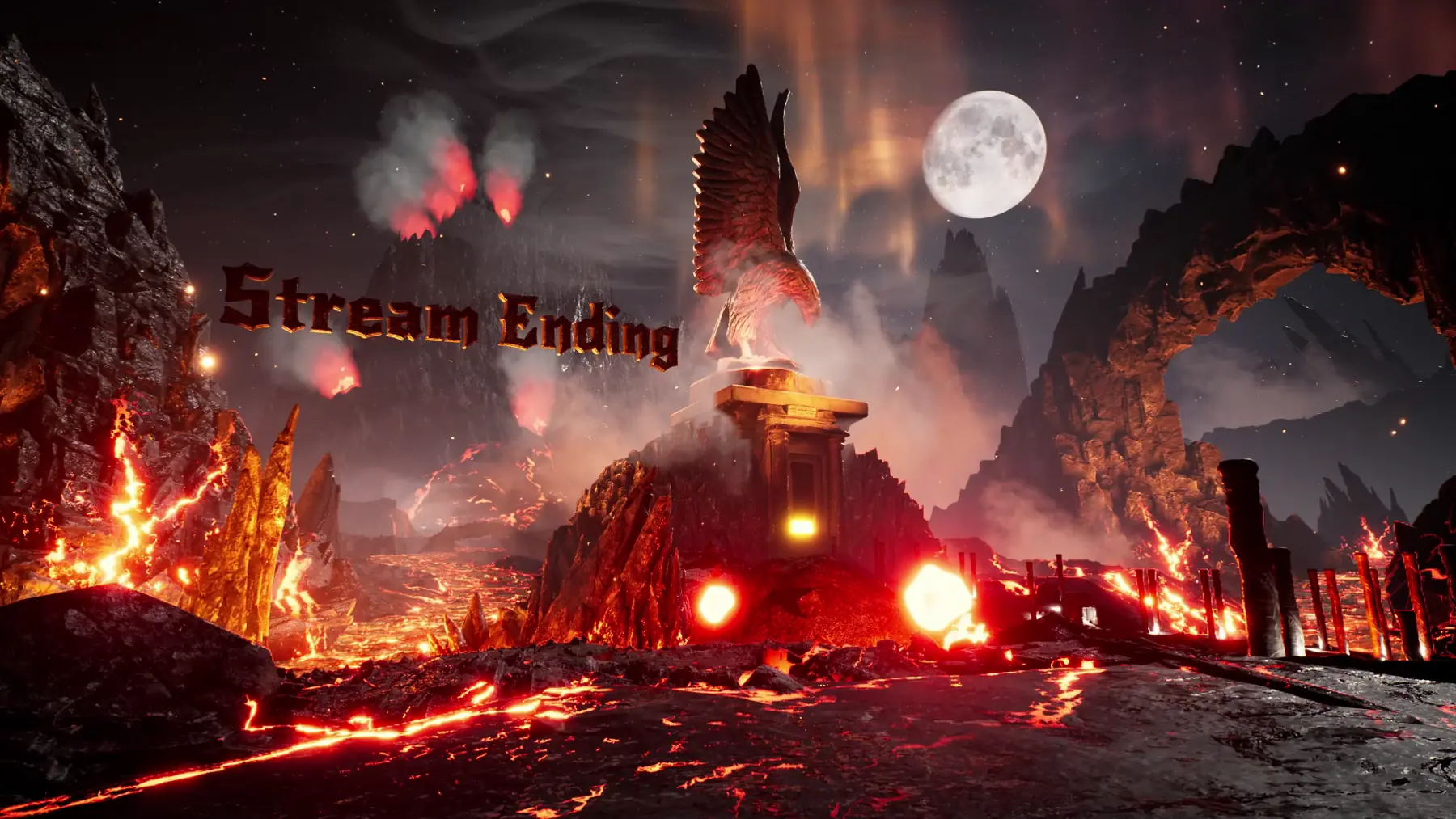
- Screens. Starting soon, be right back and ending, at 1920 × 1080. Many packages add a "just chatting" or intermission layout. A loop of a few seconds is enough; it plays for minutes.
- Webcam frame. Sized to your camera's shape. Ask for it as a separate file from the screens, so you can move it per game.
- Alerts. Follow, sub, gift sub, raid, and bits or tips are the usual set. Each one should be a WebM with transparency, so it floats over the game. Our animated alerts guide covers files and setup.
- Stinger transition. A short video OBS plays over the cut between two scenes. OBS describes it as overlaying "a video over a cut-transition between two sources." The cut happens at a point you set in milliseconds or frames, or, since OBS 27.0, a track matte controls it: a black-and-white mask video where black shows the current scene, white the next, and grey crossfades. OBS needs the stinger and its matte in one file, side by side (3840 × 1080 for two 1080p halves) or stacked (1920 × 2160).
- Small extras. A chat box frame, labels for recent follower or goal, and a game-scene layout. Useful, but every extra box on screen frames the game a little more. Two or three is plenty.
Extras that set a channel apart
The pieces above are what every package should cover. These are what make a channel recognisable:
- Custom overlays for moments. A giveaway overlay that shows the prize, the entry command and the countdown. Lower thirds that introduce a guest, a segment or a sponsor and slide away again. They're on screen for a short time, so they can be bolder than the overlay you keep up all stream.
- Custom sound design. Most streams use the same free alert sounds from the same libraries, so their alerts sound like everyone else's. Sounds made for your alerts, intro and transitions match the motion beat for beat and belong only to your channel. We make ours in-house.
- Anything built around your format. A segment you run every week, a running joke, a community ritual. A custom piece for it does more for recognition than another generic screen.
On the channel page
- Panels. The About section blocks under your player: About, Schedule, Rules, Socials, Donate. Up to 320 px wide and 300 px high on Twitch.
- Profile banner. 1200 × 480 on Twitch, which stretches it on wide screens, so keep the important part to the left.
- Offline screen. Twitch fills the 16:9 player with it, so 1920 × 1080. Twitch doesn't support an animated one; its channel trailer is the place for motion there.
- Profile picture. 256 × 256 on Twitch, using the small mark.
Every size, with Kick and YouTube too, is in our stream graphic sizes guide.
Chat: emotes and badges
Emotes and sub badges are part of the brand, but many designers price them per emote. Check whether a package includes any, how many, and whether animated versions are extra. They have to read at 28 px (emotes) and 18 px (badges), which is its own design job.
What moves and what doesn't
Animation belongs on stream: the logo intro and loop, screens, alerts, transitions, custom overlays, sometimes the webcam frame. The channel page pieces (panels, banner, offline screen, profile picture) stay static, because that's how the platforms show them. So a package sold as "fully animated" still has static panels and banners, and that's normal, not a corner cut.
What to ask before you buy
- Which pieces are included, and which are animated? Go down the quick list above and get a yes or no for each.
- What files do I get? WebM with transparency for anything animated, PNG for static pieces, and the stinger in the layout OBS needs.
- Is there a small version of the logo? If not, your profile picture will be a shrunken wordmark.
- Are emotes and badges included? And how many.
- Are the sounds custom? Or picked from a free library, which other streams will be using too.
- How many revisions, and how long does it take? Animated packages take longer than static ones; get the timeline in writing.
- Will it work on Kick or YouTube too? Screens and alerts move between platforms; panels and banners need resizing.
- Do I get the source files? Not always included. Worth knowing before you need a change.
Sources
Checked on 21 October 2026.
- OBS: Track Matte Stinger Transitions (stinger definition, cut point, matte layout)
- Twitch: Channel Page Setup (banner scaling, video player banner, panels)
- Twitch: Twitch Account Settings (profile picture and banner)
- Twitch: Emote Formatting & Instant Emote Upload Requirements
- Twitch: Subscriber Badge Guide